Creating an Initial MTSS Meeting
Navigation
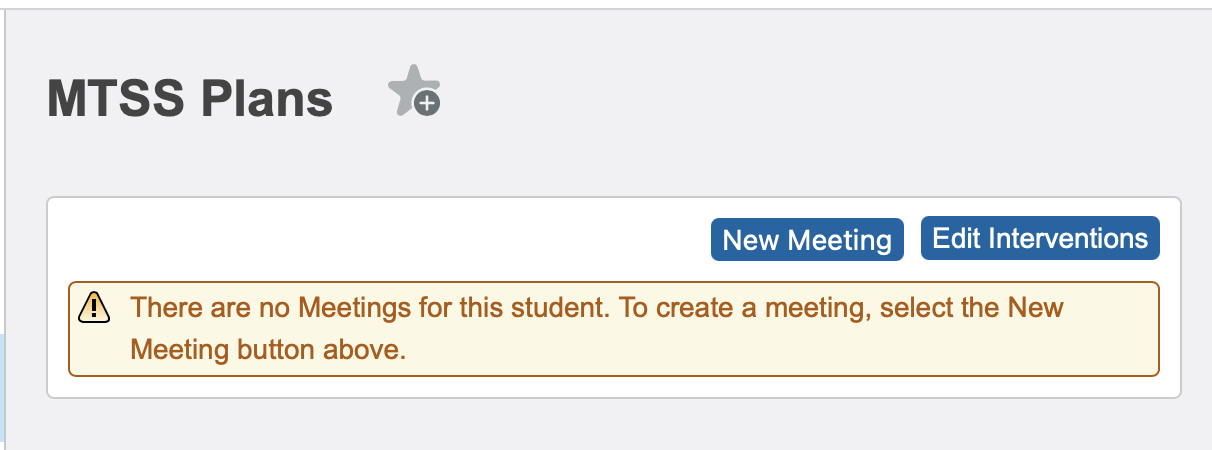
To create a MTSS meeting for a student, search for the student, and then navigate to Behavior -> MTSS. Click the New Meeting button in the upper right corner.
 Creating the Initial Meeting
Student Data
The Student Data section populates almost entirely automatically. While there are drop-down menus for grade level and school, they will populate with the student's current grade level and enrolled school. The only data entry work in this section is to list any Caring Adults that exist for students. (Note, you must click the + button next to an adult after typing their name to add them. When done, you should always have one blank line.)
Team Members
The team member section is used to add the parties that are meeting to support the student. Similarly to the Caring Adults entry in the Student Data section, after entering the information about each team member, the + button on that line must be pressed. When done, you should always have one row of blank lines.
Entering email addresses is important in this step - when creating the calendar invite for the next meeting at the end of this process, the invited parties are pulled from the Team Member section.
Test Results
Test results that have been configured during the setup process to pull onto MTSS plans will have their most recent results displayed here.
Historical Attendance
This section will display historical attendance data for the student across their entire school history. Clicking the value in the school year column will open a detailed view of that school year.
Previous Interventions
Since this is the initial meeting, the previous interventions table will be blank.
Activities
The Activities section provides space to include information about the in-school and out-of-school activities the student is involved with/interested in. It provides context for team as they consider what effective interventions might be, and other caring adults who can support the student.
These fields do not auto-save and after typing in each text box, the Save button must be pressed. Failure to do so will result in losing any information that has been entered when the user navigates away from the page.
Meeting Information
Intervention Concerns
The Intervention Concern section allows the user to indicate the areas where the team has concerns, identify the severity of the concerns, and, if an academic concern, identify in which subject the concern is relevant.
Values entered into the ranking drop-down boxes are auto-saved, however, to add a specific subject to the Academic concern, the user must click the + button after selecting the subject area. Multiple subjects can be added.
Current Meeting Information
The Current Meeting section is where the notetaker for the meeting will include details about the relevant discussion.
- The meeting date/time will default to the date/time that the "New Meeting" button was pressed. If creating the meeting entry ahead of time for basic data entry, make sure to adjust these values.
- The Meeting Location field has a Save button that must be pressed once the location is entered.
- The Meeting Notes text box also has a Save button that must be pressed to save the notes. This button can be pressed multiple times to save progress after entering information.
Interventions Being Put in Place
After the areas of concern are identified and ranked by Tier, interventions can be added. These interventions are configured at the District Office, by district staff. Only the interventions that have been designated as applicable for a given area of concern/intervention tier will be displayed.
It is important to note that interventions must be saved - you will be prompted if you do not click the Save button. In the image below, a warning appears next to the mental health intervention because it has not yet been saved.
Next Meeting Information and Calendar Invite Creation
Continual follow-up is a vital part of the MTSS process and it is highly recommended to set the next follow-up meeting at the end of each meeting. To facilitate this, the bottom portion of the data entry page contains fields regarding the next meeting. Crucially, it will also create calendar invites to support staff in remembering the meeting. Google and Microsoft Outlook are supported.
- Set the date, time, and location for the next meeting.
- Select the district's calendar provider from the "Next Meeting Calendar Event" drop-down menu.
- Click the "Launch Office Calendar Invitation" or "Launch Google Calendar Invitation" button.
- The meeting invite will pre-populate with the Team Members identified at the top of the page, with the correct item, date, and location. The meeting notes will indicate that it is a follow-up meeting and display the student_number for the student. (This can be pasted into the search bar in PowerSchool to pull up the student."
Finalizing the Meeting
Meetings have two states - draft and finalized. A draft meeting indicates that the meeting has not yet happened, or has happened, but for one reason or another, is not yet final and the user needs the ability to make changes. (Perhaps pending approval by the parent or confirmation that the next meeting date is amenable for all attendees. Meetings start in the draft status.
Once a meeting has occurred, and no more edits are foreseeable, the meeting should be finalized to prevent any future changes. This is accomplished by clicking the "Finalize and Lock Meeting" button at the top of the MTSS page. (If you have exited the page and gone one to other things, it can be accessed again by navigating to the student's Behavior -> MTSS page and pressing the Edit button on the appropriate line.) This makes the plan active and the alert icon/reports will only show the interventions in place on the most recent active plan for a student.
Flagging the Student as an Active MTSS Student
Active/Inactive Toggle
Upon returning to the Meeting List, a table will be showing with all existing MTSS meetings being displayed. Directly above that table is a dropdown menu to indicate whether this student is now a "Current MTSS Student". Setting that dropdown to "Yes" will trigger the alert icon.
MTSS Alert
The MTSS alert is a 3 color pyramid that appears in the admin and teacher portals when viewing student pages. Clicking the icon will list the interventions that are currently in place.
All data displayed in screenshots are fictitious.
Related Articles
Creating a Follow-Up MTSS Meeting
Copying the Prior Plan Holding a follow-up meeting is a relatively straightforward process. Navigate to the student's Behavior -> MTSS page. Locate the prior meeting and click the "Copy to New Meeting" button This will copy the following data to a ...MTSS Meetings Follow-Up Meeting Report
Navigation There are two potential options for how to reach the MTSS reports, depending upon how your school district's PowerSchool is configured. There may be a page under Data & Reporting labeled as "GSD Reports", "Your District Abbreviation ...Gifted & Talented - Initial Meeting (Scenario A)
The GT Review Meeting (Administrator Form) documents a student's review. This article walks through an Initial Meeting or Annual Review that ends in Scenario A: Continue in GT Program - the student starts or remains in the program with new goals and ...MTSS Active Interventions Report
Navigation There are two potential options for how to reach the MTSS reports, depending upon how your school district's PowerSchool is configured. There may be a page under Data & Reporting labeled as "GSD Reports", "Your District Abbreviation ...MTSS Active Plans Report
Navigation There are two potential options for how to reach the MTSS reports, depending upon how your school district's PowerSchool is configured. There may be a page under Data & Reporting labeled as "GSD Reports", "Your District Abbreviation ...